About The Virtual OS Museum
Overview
The Virtual OS Museum collects more than 1,700 pre-installed operating systems and standalone applications inside a single Linux virtual machine built for QEMU, VirtualBox, or UTM. The catalogue spans 250+ platforms and 570+ distinct operating systems, from the Manchester Baby of 1948 through mainframes, minicomputers, workstations, home computers, and mobile systems to the present day.
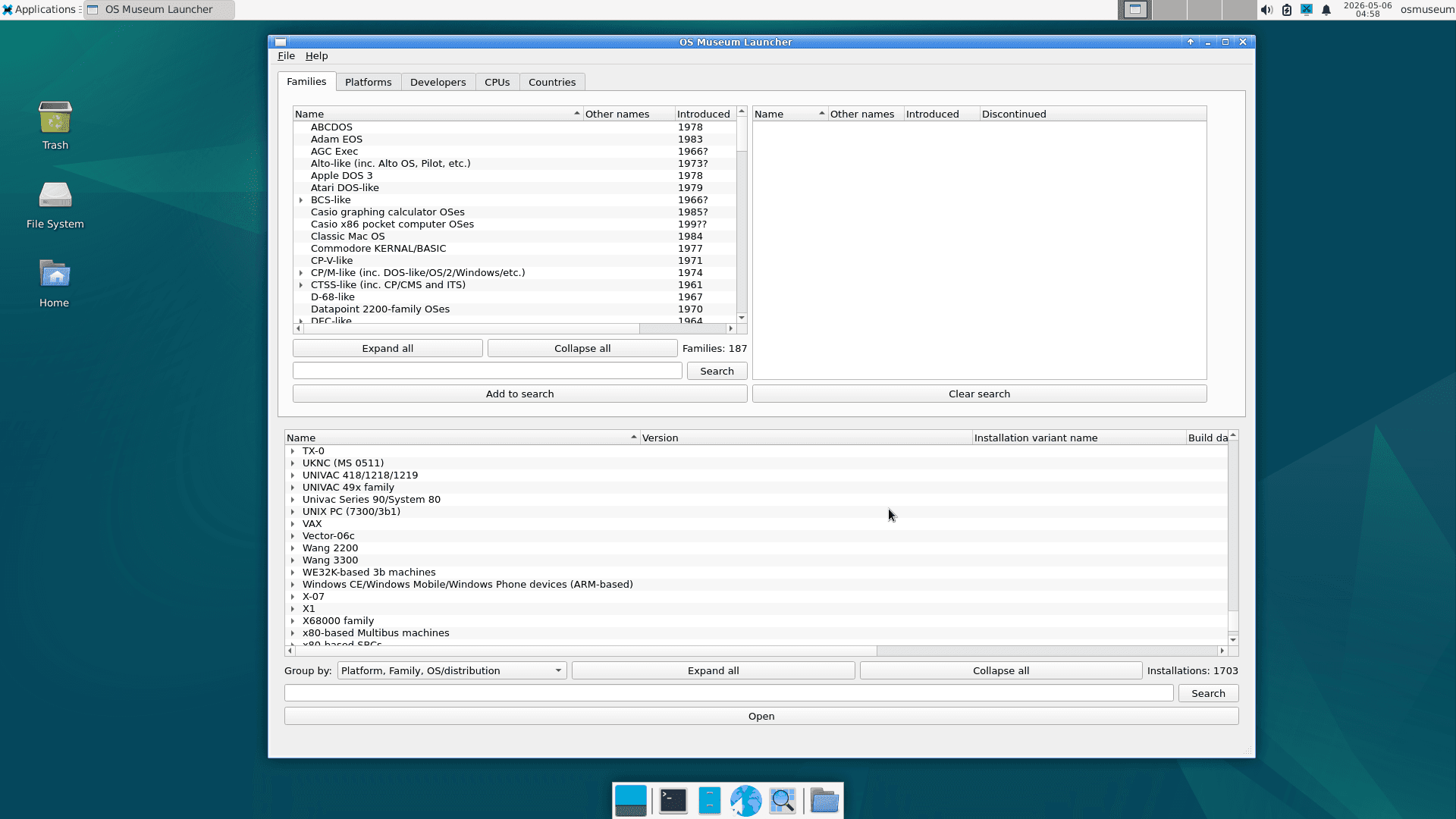
A custom emulator-independent launcher starts any entry with one click, and its snapshot feature restores a broken emulated installation to a working state. Curator Andrew Warkentin has gathered emulator images since 2003, and all OSes and emulators ship pre-installed and pre-configured so visitors skip the install media, config files, and emulator version hunting.
Key Benefits
- Over 1,700 installations across 250+ platforms and 570+ distinct operating systems in one VM.
- Click an entry in the launcher and the guest OS boots without emulator setup or install procedures.
- Snapshot support reverts corrupted emulated installations to a working state inside the launcher.
- The full edition ships every image pre-downloaded and runs offline.
- Automatic and manual updates add new installations without re-downloading the whole VM.
- Many installations include period applications, development tools, games, and utilities already configured.
How It Works
You pick the full edition, which ships everything pre-downloaded and runs offline, or the lite edition, which fetches a guest's disk and tape images the first time you run it. Run the bundled hypervisor installer for QEMU, VirtualBox, or UTM plus the supplied shortcuts on Windows, macOS, or Linux, boot the Linux VM, and open the launcher. Take a snapshot before experimenting with an unfamiliar system, revert when something breaks, and pull in new installations through automatic or manual updates.
Use Cases
- Computing historians boot origin systems such as CTSS, Multics, ITS, and TOPS-20 to study how they actually behaved.
- Students of operating system design run early Unix versions, Plan 9, or Minix 3.4 in a ready-made environment.
- Retrocomputing enthusiasts revisit CP/M, Amiga UNIX, OS/2, BeOS, or classic Mac OS with era software loaded.
- Emulator developers compare behavior against specific OS versions and submit bug reports or patches through GitLab and GitHub.
- Educators demonstrate GUI history, from Xerox Star ViewPoint to early desktop metaphors, without classroom setup work.
- Archivists and collectors suggest missing platforms and share installation notes with the curator through Discord or Fluxer.
Why Choose This Product
Software preservation archives keep historical systems technically available, yet visitors still assemble toolchains, match emulator versions, and reinstall from original media. This museum closes that gap with roughly two decades of collecting and installations sourced from original install media, plus emulators patched where later versions regressed. The collection remains unfinished, many gathered images are not installed yet, and one curator sustains the work with Patreon and Ko-fi support.
The Virtual OS Museum Pros & Cons
- Over 1,700 pre-installed OS installations in a single downloadable VM
- Catalogue spans 1948 to today across 250+ platforms
- Full edition runs entirely offline
- Snapshot feature reverts broken emulated installations
- Updates add new installations without a full re-download
- Collection is still unfinished, with many gathered images not yet installed
- New platform and OS suggestions may not be added immediately
- Some installations only run in particular emulator versions due to regressions
- Curated and sustained by one person
Key Features
Pre-installed OS Catalogue
Over 1,700 installations covering 250+ platforms and 570+ distinct operating systems span stored-program computing from 1948 to today.
One-Click Launcher
A custom emulator-independent launcher boots any catalogue entry on a single click without configuration files or install procedures.
Snapshot Revert
The launcher's snapshot feature quickly restores a broken emulated installation back to a known working state.
Bundled Emulators
QEMU, VirtualBox, and UTM arrive pre-installed and pre-configured inside the Linux VM, along with hypervisor installers and shortcuts.
Offline Full Edition
The full download ships with everything pre-downloaded so the whole museum runs without an internet connection.
Lite Edition
The lite version downloads disk, tape, and other guest images the first time a system is run.
Live Updates
Automatic and manual updates land new installations in either edition without re-downloading the entire VM.
Era-Accurate Software
Many installations bundle period applications, development tools, games, and utilities set up the way the machine was actually used.
Cross-Platform Setup
Hypervisor installers and desktop shortcuts let you run the VM on Windows, macOS, and Linux hosts.
Frequently asked questions about The Virtual OS Museum
What is the Virtual OS Museum?
It is a virtual museum of operating systems and standalone applications running under emulation, implemented as a Linux VM for QEMU, VirtualBox, or UTM. All OSes and emulators come pre-installed and pre-configured, and a custom emulator-independent launcher starts them one click at a time.
Which operating systems can I boot in it?
The catalogue runs from the Manchester Baby of 1948 to the present, including CTSS, MVS, VM/370, TOPS-10/20, ITS, Multics, SunOS, IRIX, A/UX, NeXTSTEP, Plan 9, CP/M variants, Apple II, Amiga UNIX, OS/2, BeOS, Windows 1.0 through early Longhorn betas, and PalmOS, EPOC, QNX, and others.
Which hypervisors and host systems does it work with?
The museum runs as a Linux VM for QEMU, VirtualBox, or UTM, all bundled. Hypervisor installers and shortcuts are included for running the VM on Windows, macOS, and Linux hosts.
What is the difference between the full and lite editions?
The full version ships with everything pre-downloaded and runs offline. The lite version downloads disk, tape, and other images for guest VMs the first time they are run. Both editions support automatic and manual updates so new installations arrive without re-downloading the whole VM.
Do I need to install emulators or operating systems myself?
No. The project provides the OSes and emulators pre-installed and pre-configured, so you click an entry in the launcher and it runs rather than assembling a toolchain and matching emulator versions yourself.
What happens if I break an emulated installation?
The launcher includes a snapshot feature that quickly reverts a broken installation back to a working state.