About SlimSnap
Overview
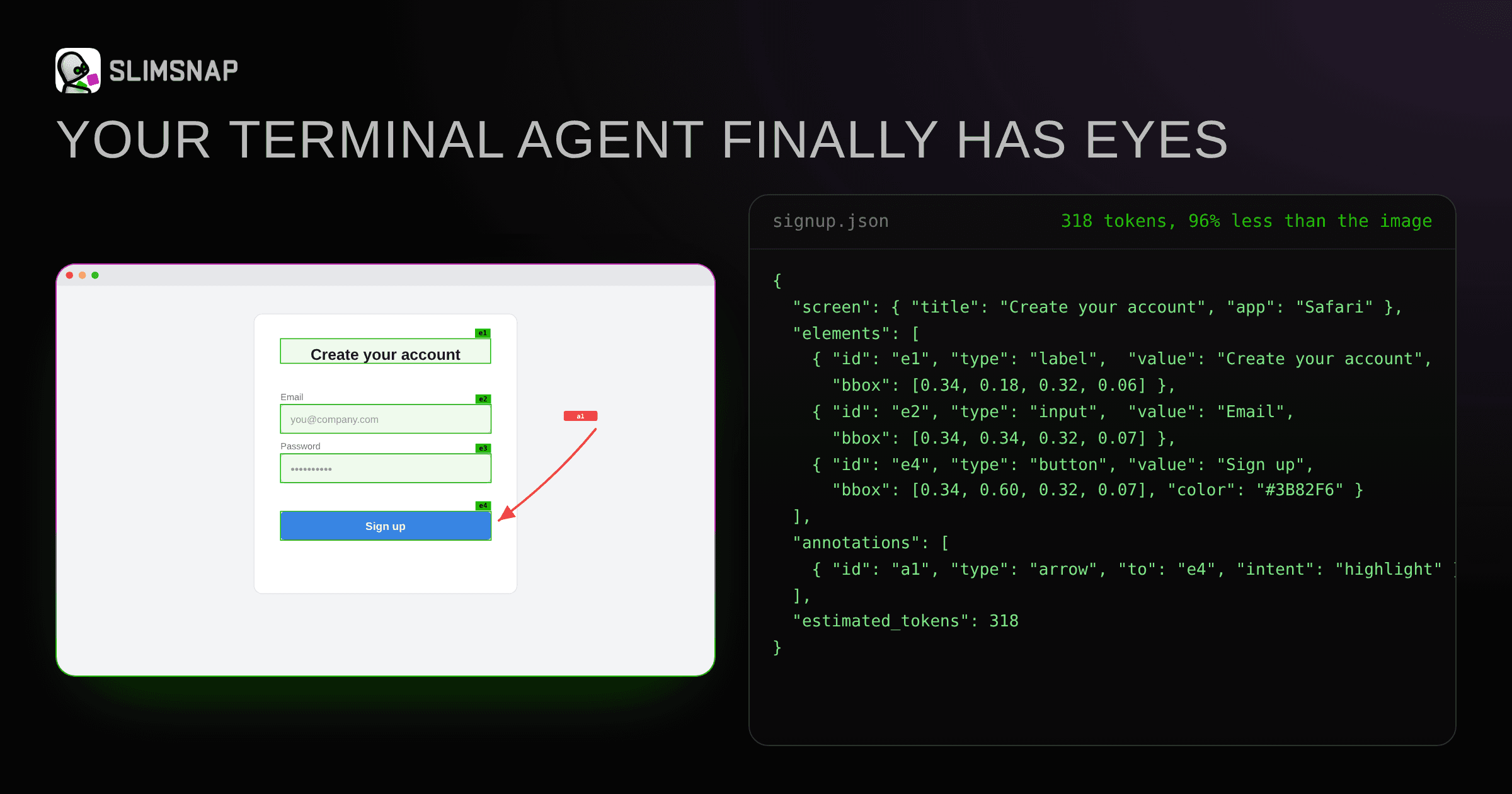
SlimSnap turns a screenshot into structured JSON that a terminal coding agent can read. You press a capture shortcut, drag out a region, annotate the part that looks wrong, and copy the result as text. From there it pastes into Claude Code, Aider, Codex CLI, Cursor, Continue.dev, or any other place text goes.
Capture and OCR run locally on a Mac or Windows machine, so screens never leave the computer and the app asks for no account. Each export lists every element with its type, text, colour, and bounding box in normalised 0 to 1 coordinates, plus the intent behind each annotation. The JSON schema sits on GitHub under MIT.
Key Benefits
- Captures a region or a whole scrolling page with a keyboard shortcut on both Mac and Windows
- Exports arrows and callouts as structured intent so an agent edits the marked element instead of guessing
- Runs OCR locally, so captures stay on the machine and no account is needed
- Gives every element a bounding box in normalised 0 to 1 coordinates
- Splits long pages into readable frames delivered under one JSON payload
- Publishes the JSON schema under MIT so anyone can validate against it or build an exporter
How It Works
Press Command-Shift-S on Mac or Ctrl-Shift-S on Windows and drag to select an area; press Command-Shift-L or Ctrl-Shift-L to capture a scrolling page, where you scroll or let Autoscroll drive and any click stops it. Mark the problem with arrows, callouts, or highlights so the export names a target element. Copy the JSON with one click and paste it into an agent prompt, or install the connector and ask Claude to read your latest capture from the save folder.
Use Cases
- Coding agent users paste UI JSON into Claude Code, Aider, or Codex CLI prompts instead of writing paragraphs to describe a screen
- Developers on SSH sessions paste captures where images cannot travel
- QA testers annotate a failing element and hand the agent a target reference instead of a raw crop
- Design reviewers point arrows and callouts at specific components so the agent fixes exactly what they marked
- Linux users hand-write or generate schema-valid JSON with their own OCR pipeline and feed it to the Claude Code skill
Why Choose This Product
SlimSnap differs from pasting a raw screenshot because the JSON carries the text, position, colour, and bounding box of each element rather than pixels an agent has to interpret. The page concedes what the JSON drops: gradient direction, whitespace feel, and brand vibe stay in the image, so it suggests sending the raw capture as well when the question is how something should look. The Mac and Windows apps are closed; the schema and the Claude Code skill are open.
SlimSnap Pros & Cons
- Keyboard-shortcut region and scrolling capture on both Mac and Windows
- Local OCR and capture with no upload and no account required
- Open MIT JSON schema plus an open Claude Code skill
- Long pages split into readable frames under a single JSON payload
- Annotations export as structured intent with element target references
- No Linux build; users must email to request one
- Mac build targets Apple Silicon only
- Desktop apps are closed source; only the schema and skill are open
Key Features
Region Capture
Press Command-Shift-S on Mac or Ctrl-Shift-S on Windows, drag to select any area, and release.
Scrolling Capture
Command-Shift-L (Ctrl-Shift-L on Windows) captures a whole scrolling page, scroll it yourself or let Autoscroll drive until a click stops it.
Structured Annotations
Arrows, callouts, and highlights export as structured intent pointing at a target element reference rather than as red pixels.
One-Click JSON
One click copies the capture as JSON text that pastes into Claude Code, Aider, Codex CLI, Cursor, Continue.dev, terminals,SSH sessions, CI logs, and git commits.
Deterministic Layout
Every element carries a bounding box in normalised 0 to 1 coordinates alongside its type, text, and colour.
Built-In OCR
Local OCR reads every label, button, and error message in the shot so the agent sees the same words you do.
Local Processing
Capture and OCR run on your own machine with no upload, no account, and no server in the loop.
Open MIT Schema
The JSON schema is published on GitHub under MIT, so you can read it, validate against it, or write your own exporter.
Claude Connector
The connector and skill read ~/.slimsnap/config.json to find your default save folder and load the latest JSON capture into the agent's context.
Frequently asked questions about SlimSnap
Why not just paste a screenshot into ChatGPT?
You can, and the page says you should for one-off questions. But terminal agents such as Claude Code, Aider, and Codex CLI do not accept images, so SlimSnap converts the screen into JSON instead. It is also more reliable when the agent must reason about specific elements rather than overall appearance.
Does SlimSnap send my screenshots to a server?
No. OCR runs locally on your own Mac or Windows machine and captures never leave it. There is no upload, no account, and no server in the capture loop.
Is SlimSnap open source?
Partly. The JSON schema is open under MIT on GitHub, and so is the Claude Code skill. The Mac and Windows apps themselves are closed source.
How does the Claude Code skill find my captures?
SlimSnap writes a small config file at ~/.slimsnap/config.json on startup and on every settings change, containing your default save folder and filename pattern. The skill reads that config, lists the folder, and loads the latest JSON file into the agent's context, so no paths are hardcoded.
Do I need the app to use the skill?
No. The skill works on any valid SlimSnap JSON file. The Mac and Windows apps are the easiest way to produce one, but the MIT schema lets you hand-write JSON, generate it from another OCR pipeline, or build your own exporter on Linux.
Can it capture a whole page, not just what is on screen?
Yes. Press Command-Shift-L (Ctrl-Shift-L on Windows), select the area, and scroll through the content, or press Autoscroll and let SlimSnap scroll for you; any click stops it. Long captures split into page-sized frames with one JSON covering the whole page in order.