
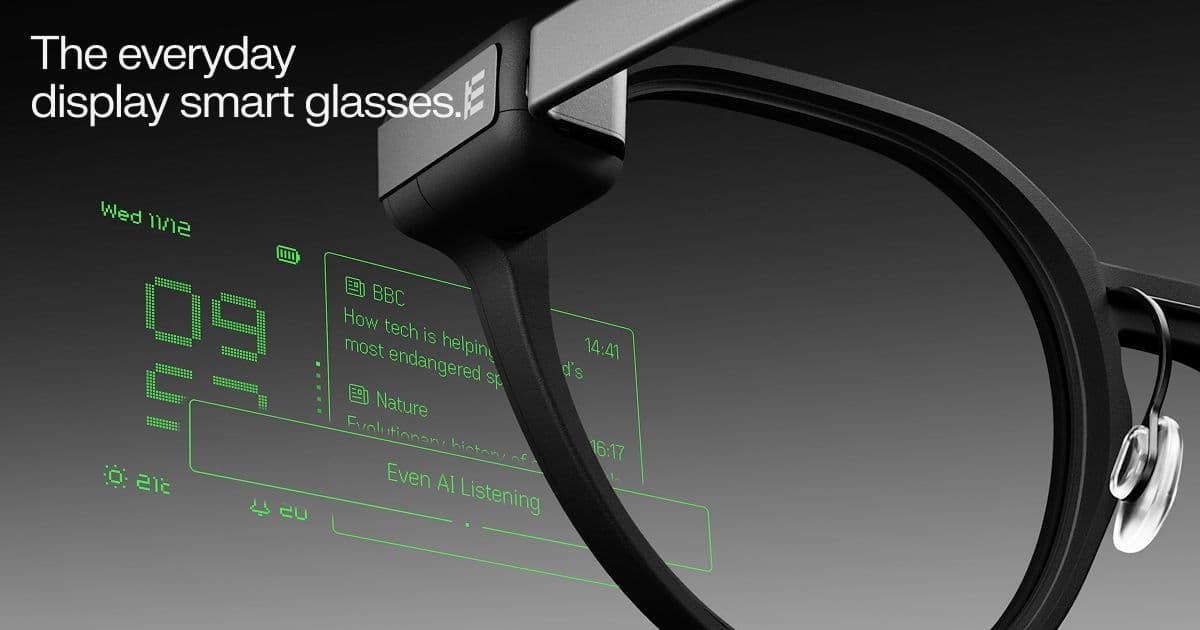
About Even G2 Terminal Mode
Overview
Even G2 Terminal Mode turns Even Realities display glasses into a live window onto AI coding agents that run on your laptop. Agents keep executing on your host machine while their status streams to the glasses, so you can step away for coffee, a walk, or a workout and still know exactly what is happening. Even Terminal ships as an npm command-line tool that runs its process on your host machine and leaves it running.
Terminal Mode does more than mirror a terminal window: it becomes a working interface for agentic development, where progress keeps moving and you step in only when your input matters. A ring tap approves simple actions, and a tap-and-hold records a short voice instruction for a live session.
Key Benefits
- Keep agents running on your laptop while their status streams to Even G2.
- See what is running, blocked, or waiting for input across multiple sessions without switching screens.
- Approve simple agent actions with a single ring tap.
- Tap and hold to record a quick voice instruction when a live session needs guidance.
- Install with one npm command and select the agent provider with the --provider flag.
- Pair the host once by scanning the QR code that the CLI prints.
How It Works
Install the tool with npm install -g @evenrealities/even-terminal@latest, start it on your host machine, and pick the agent provider with the --provider flag; the server prints its key information and you leave it running. Open the Even Realities app on your phone, enable Terminal Mode in Settings, and scan the QR code printed by the CLI to pair the host. The running session then appears on Even G2, where a ring tap approves simple actions and a tap-and-hold records a voice instruction.
Use Cases
- Developers running long agent sessions step out for coffee, a walk, or a workout and still see when the agent blocks.
- Engineers juggling several concurrent sessions check running, blocked, and waiting states in their line of sight instead of jumping between terminal windows.
- Builders away from the desk approve routine agent actions with a ring tap.
- Developers who need to redirect work record a short hold-to-talk instruction rather than returning to the laptop.
- Developers reaching a host outside their LAN follow the advanced setup path to keep sessions visible.
Why Choose This Product
Terminal Mode puts agent oversight on a display you already wear instead of one more screen to check. The CLI runs on your own host machine and only streams status to the glasses, so existing agent workflows keep running from the laptop. Even Realities builds Even G2 with an ophthalmology team that validates eye protection for prolonged use of the floating display.
Even G2 Terminal Mode Pros & Cons
- Session status streams to Even G2 while agents keep running on the laptop
- Ring tap approves simple actions; hold-to-talk sends a voice instruction
- Shows running, blocked, and waiting sessions without switching screens
- Installs with a single npm command and a QR-code pairing step
- Requires Even G2 glasses and the Even Realities phone app to pair the host
Key Features
Live Session Status
Agent status streams from your host machine to Even G2 while the session keeps running on your laptop.
Multi-Session Overview
The glasses show which sessions are running, blocked, or waiting for input without jumping between screens.
Ring-Tap Approvals
A single ring tap approves simple actions that an agent is asking to perform.
Hold-to-Talk Guidance
Tapping and holding records a quick voice instruction to guide a live session.
npm CLI Setup
Even Terminal installs with npm install -g @evenrealities/even-terminal@latest and runs its process on the host machine.
Provider Selection
The --provider flag selects which agent provider the CLI starts with.
QR Pairing
Scanning the QR code printed by the CLI pairs the host and starts streaming to Even G2 through the Even Realities app.
Off-LAN Access
The server prints its key info so you can reach the host from outside your LAN using the advanced setup path.
Frequently asked questions about Even G2 Terminal Mode
What is Even G2 Terminal Mode?
Terminal Mode turns Even G2 display glasses into a live interface for agentic work. Agents keep running on your laptop while their status streams to the glasses, and you approve or guide sessions from the glasses instead of another screen.
Where do my AI coding agents run?
Agents keep running on your laptop. Even Terminal runs its process on the host machine, prints its key information, and stays running while the glasses show session status.
How do I install Even Terminal?
Run npm install -g @evenrealities/even-terminal@latest on your host machine, start the process, and choose the agent provider with the --provider flag. The server prints key info you use for pairing, and you leave it running.
How do I pair Even G2 with my host?
Open the Even Realities app on your phone, enable Terminal Mode in Settings, and scan the QR code printed by the CLI. The app pairs the host and starts streaming to Even G2.
How do I approve an agent action from the glasses?
Approve simple actions with a ring tap. When a live session needs more direction, tap and hold to record a quick voice instruction without going back to your laptop.
Can I monitor several agent sessions at once?
Yes. The glasses show what is running, blocked, or waiting for input across multiple sessions in your line of sight, so you do not jump between screens.